
Holymod Studio › Documentation › Get started
Your first skin in 5 minutes
Pick a trailer, start from a template, add your name and download a mod ready for ETS2. Step by step, with screenshots.
Holymod Studio runs in your browser: there is nothing to install. Designing is open to everyone; to download the mod you need a free account (email or Steam). These are the steps from start to finish.
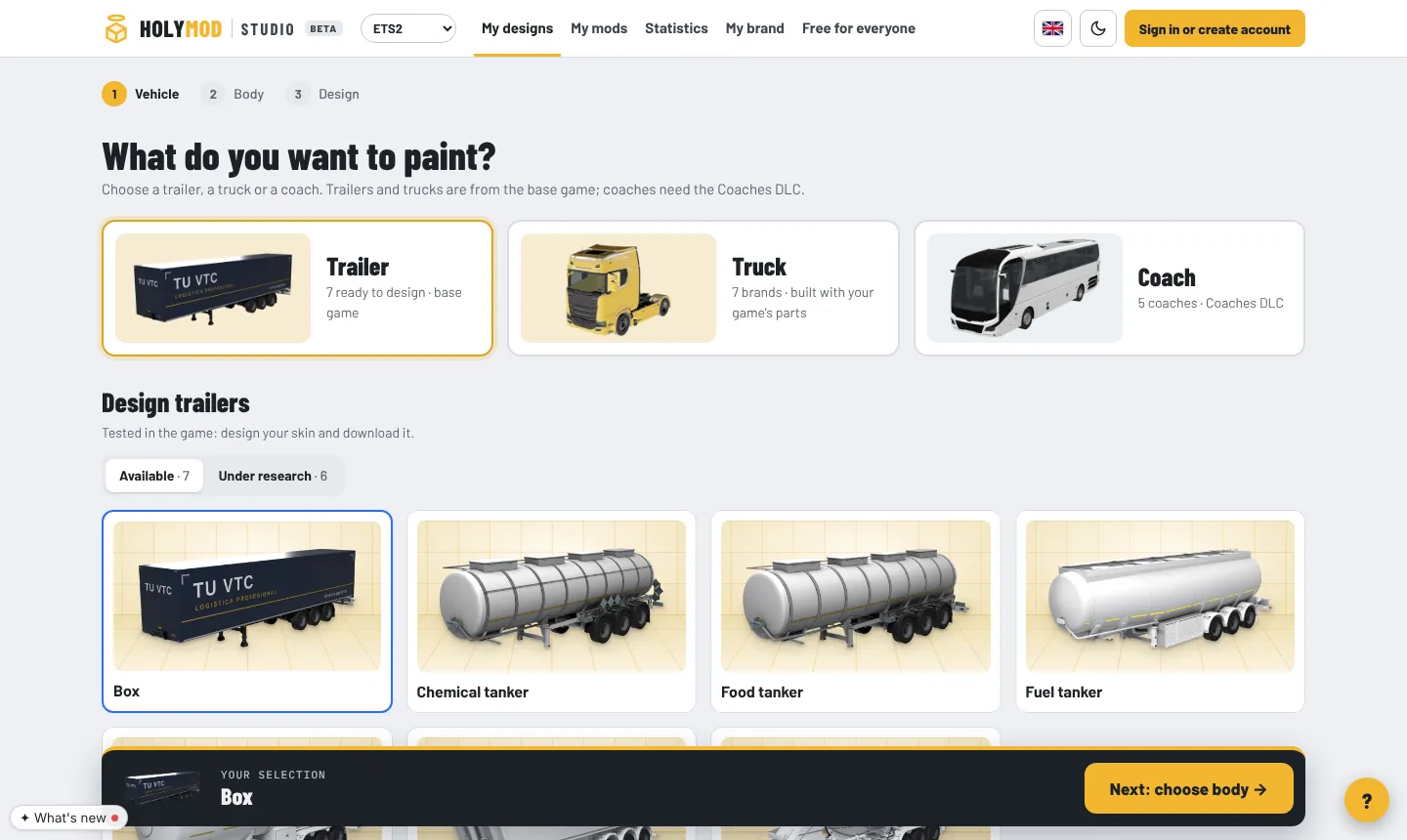
1. Choose what to paint
Press New design and choose Trailer, Truck or Coach. To start, a box trailer is the simplest: pick it, choose the body and you’re in the editor.
2. Start from a template
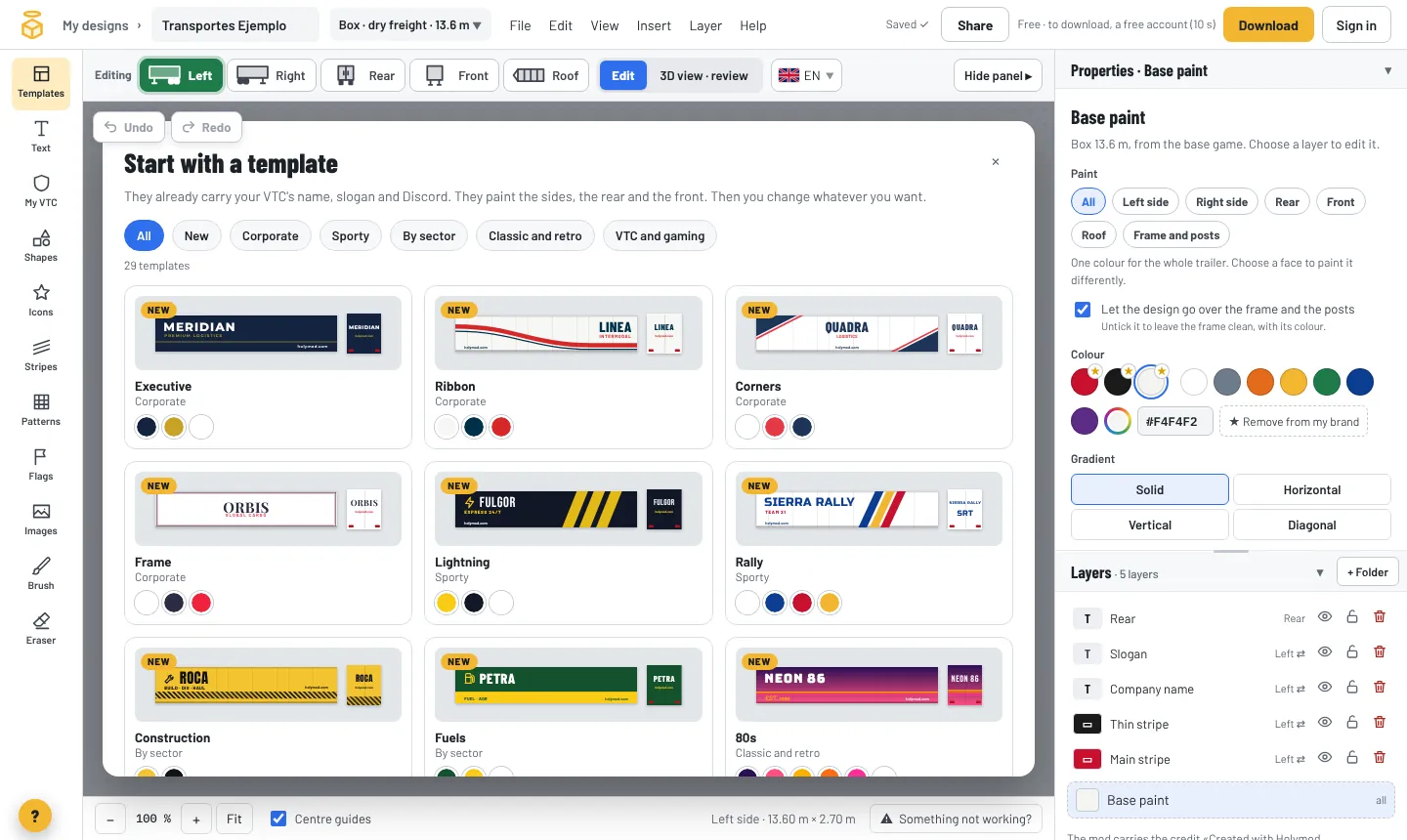
In the left bar, Templates opens 29 ready-made designs. If you fill in My VTC first (name, slogan, Discord…), the templates already carry your details. You can also start from blank.
3. Change texts and colours
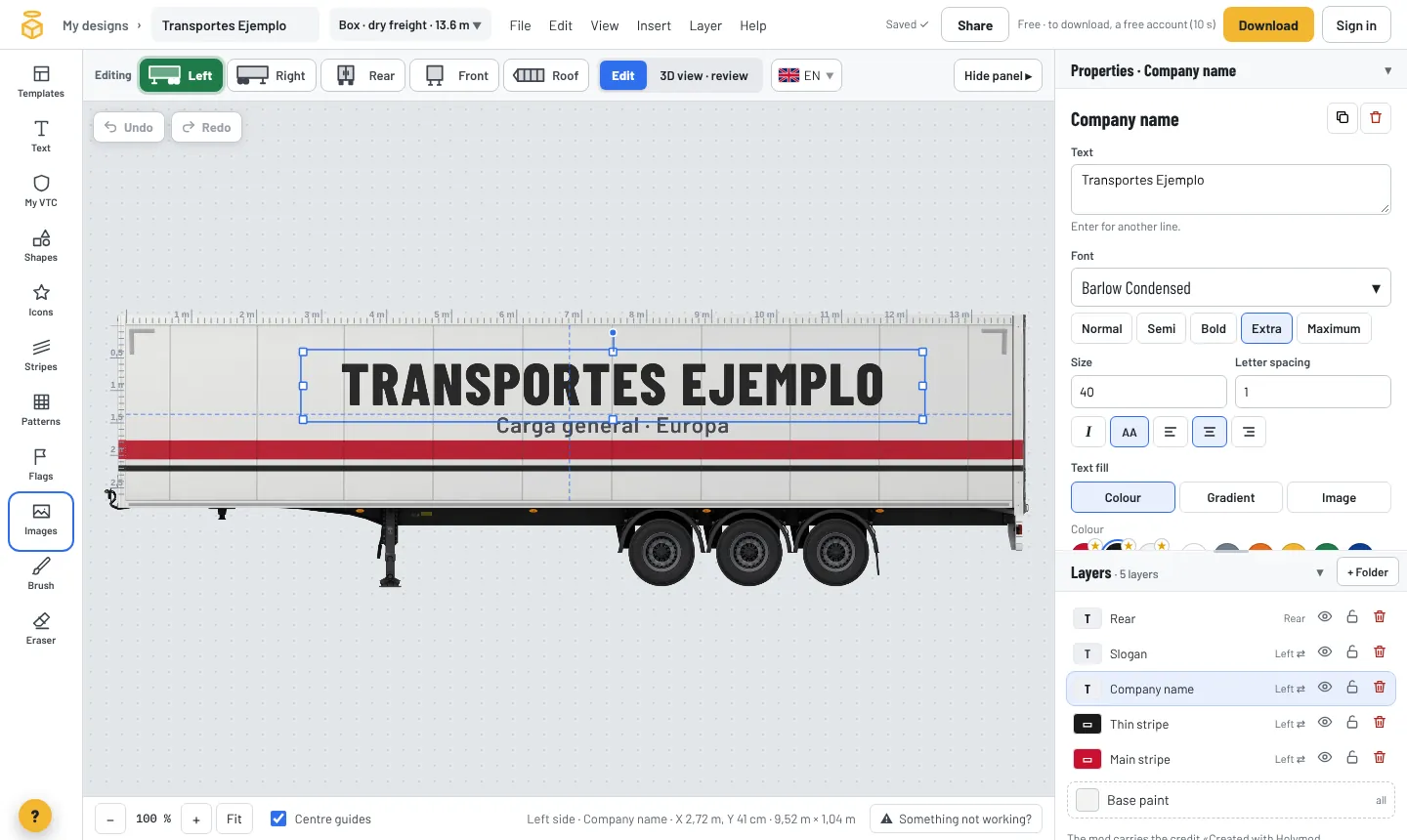
Click any text on the trailer: on the right, in Properties, you change the text, font, size and colour. With nothing selected, that panel shows the trailer’s base paint.
4. Check it in 3D
Drag the canvas background to rotate the trailer, or press 3D view · review. What you see is the real game render with your design on it. More in The 3D view.
5. Download it and play
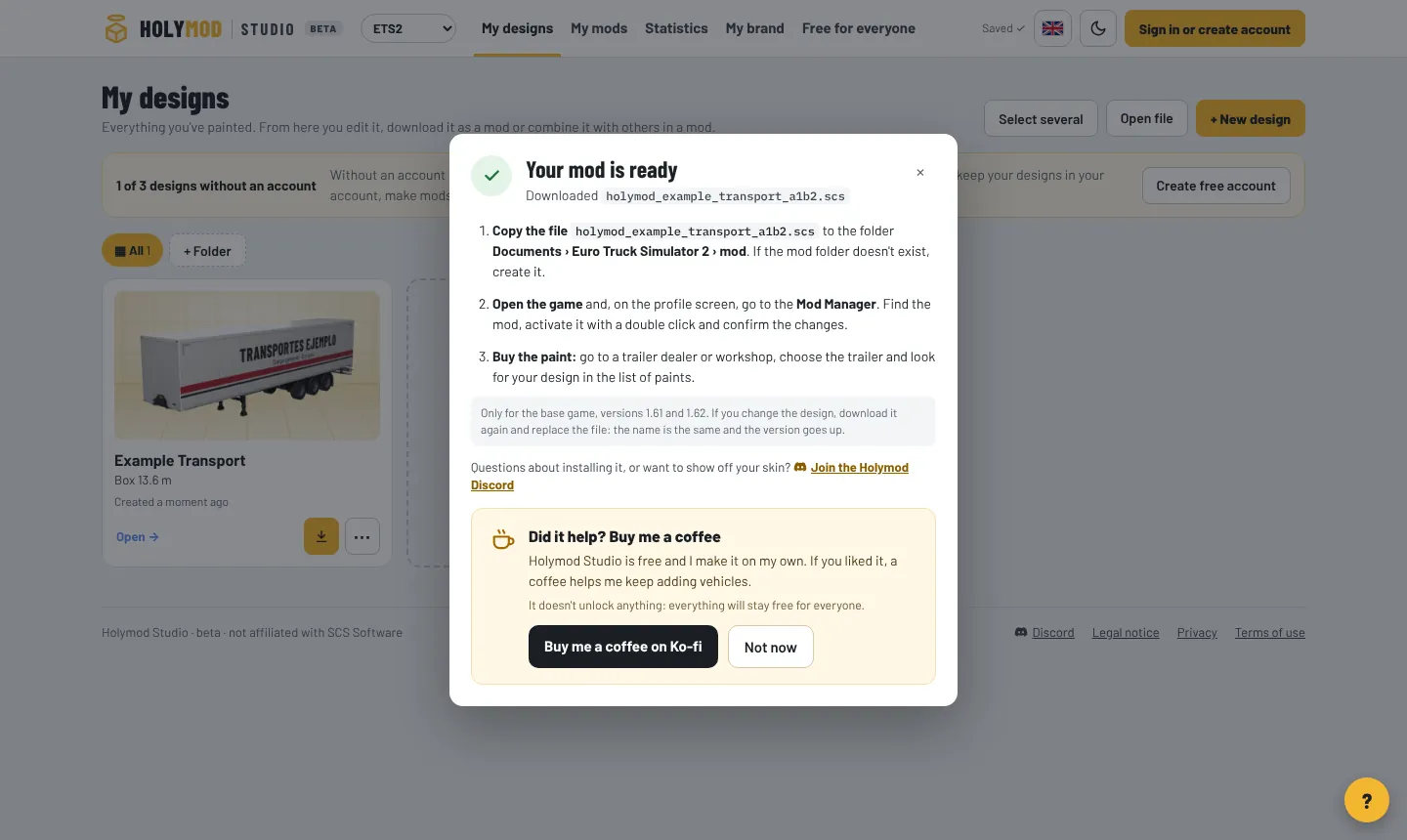
Press Download. We warn you if something important is hidden or cut off, and then a .scs file is generated in your browser. Copy it into the game’s mod folder, enable it in the Mod Manager and choose the paint job. Full details in Download and install.
Updated on 26 November 2026